Connection Guide
How to set up and connect to your PS5 or PS4 via Remote Play.
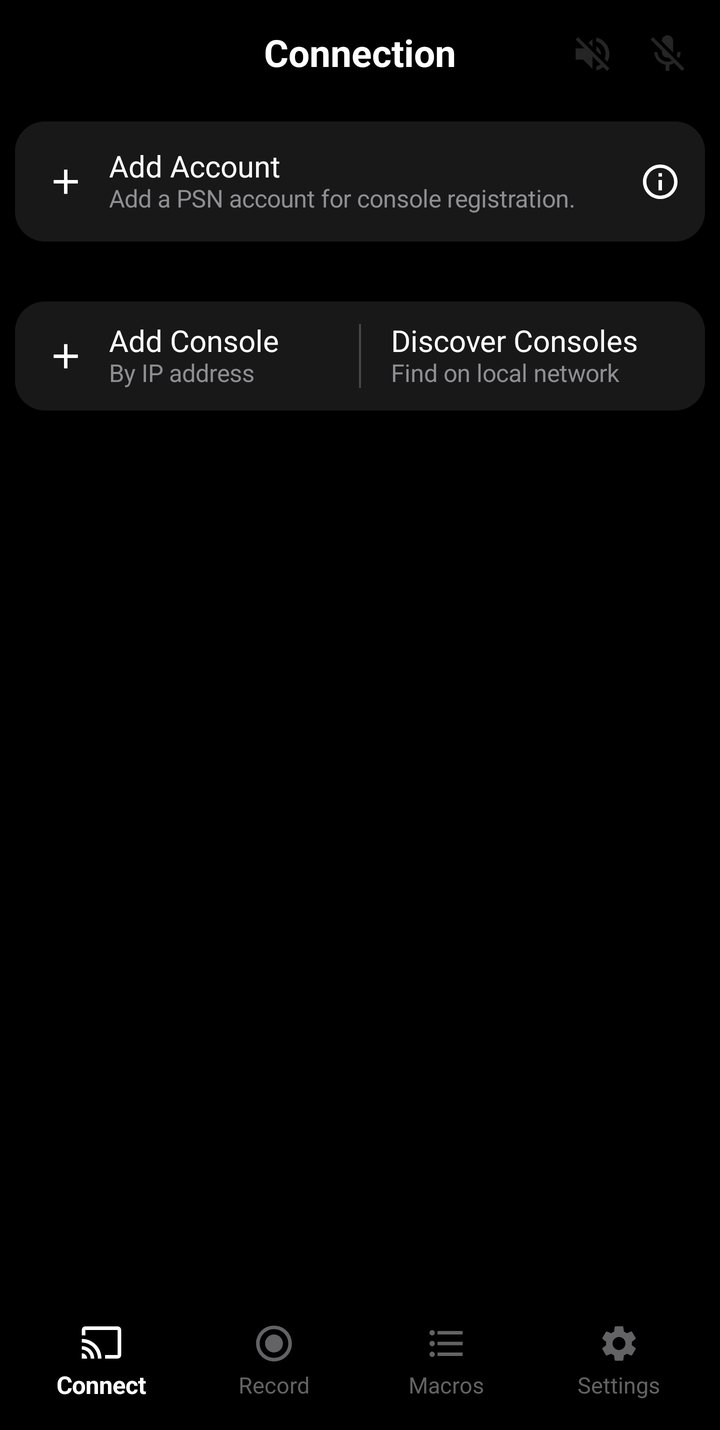
Overview
ConsoleMacros PX connects to your PlayStation console over your local network using the PS Remote Play protocol. The app establishes a Remote Play session with your console over a local network only. ConsoleMacros PX is designed for input customization, recording, and automation while playing on your console's local display. It sends controller inputs to the console, plays game audio, and enables voice chat via your phone's microphone. It is not intended for use as a video gameplay-streaming app — console video appears only on the Image Trigger capture screen to select an on-screen element.
The app supports multiple PSN accounts and multiple consoles. You can connect to one console at a time.
The app connects over your local Wi-Fi network. Both your phone and console must be on the same network. Internet connections are not supported.
PS5, PS4, PS, PlayStation, PlayStation 5, PlayStation 4, DualShock, DualSense, PS Remote Play, and PSN are trademarks or registered trademarks of Sony Interactive Entertainment Inc. ConsoleMacros PX is in no way endorsed by, sponsored by, or affiliated with Sony Interactive Entertainment Inc.
Requirements
- A PS5 or PS4 (firmware 7.0 or later) console
- A PlayStation Network (PSN) account logged in on the console
- Remote Play enabled on the console
- Your phone and console on the same local network (same Wi-Fi or wired connection)
- A USB or Bluetooth controller paired with your phone (works best with a DualSense or DualShock 4 controller for all input features like touchpad)
PS4 firmware 7.0 (October 2019) changed Remote Play pairing to use Account IDs instead of usernames. ConsoleMacros PX requires this newer pairing method, so PS4 consoles must be on firmware 7.0 or later.
A wired (ethernet) connection for your console is recommended for the best stability, but Wi-Fi works fine for most setups.
Setup Steps
First-time setup requires these steps in order.
- Add a PSN account — Sign in with your PlayStation Network account or enter your Account ID manually.
- Enable Remote Play on your console
- PS5: Go to Settings > System > Remote Play and enable Enable Remote Play.
- PS4: Go to Settings > Remote Play Connection Settings and enable the Enable Remote Play checkbox.
- Add your console — Use Discover to find it on your network, or add it manually by IP address.
- Get a pairing PIN from your console
- PS5: Go to Settings > System > Remote Play > Pair Device.
- PS4: Go to Settings > Remote Play Connection Settings > Add Device.
- Pair — Tap the Pair button and enter the 8-digit PIN in the app to pair it with your console.
- Connect — Tap the Connect button on the paired console to start a Remote Play session.
- Play — Connect a controller via Bluetooth or USB to the phone to begin playing.
Adding PSN Account
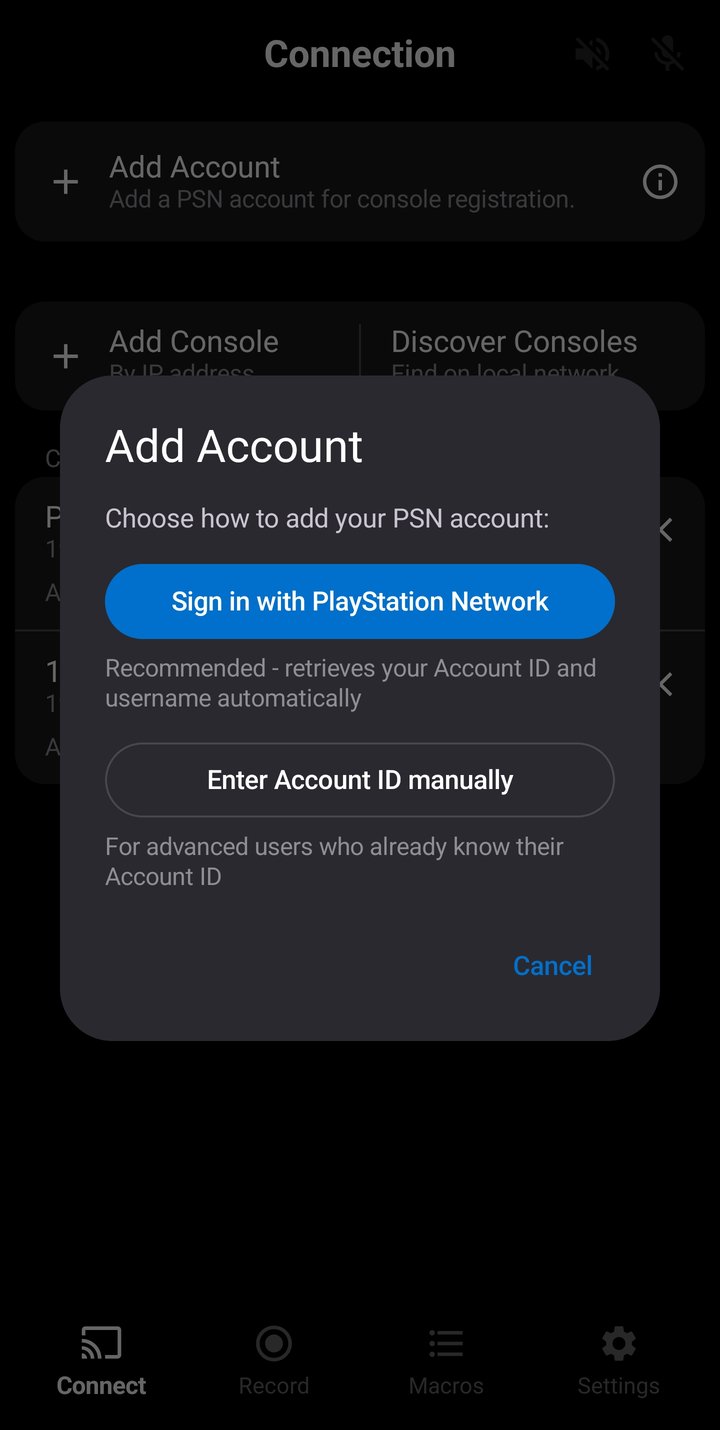
A PSN account is required for pairing and connection. The app needs your Account ID — a unique identifier linked to your PlayStation Network account. There are two ways to add an account.
Sony PSN Login Page
Tap Add PSN Account and choose Sign in with PlayStation Network. This opens Sony's official PSN login page in a browser window. After signing in, the app automatically retrieves your Account ID and username.
The app only receives your Account ID and Online ID (username) from the login response. Your email and password are entered directly on Sony's website and are never seen or stored by the app.
Manual Entry
If you already know your Account ID (a 12-character Base64 string like a1B2c3D4e5F=), you can enter it directly by choosing Enter Account ID manually. This is useful if you've obtained your Account ID from another Remote Play app or PSN API tool.
To remove an account, tap the X button on the account row. An account cannot be deleted if any console is currently paired with it — unpair those consoles first.
Your account credentials are stored locally on your device and are never sent to any server other than Sony's official PSN authentication service.
You can add multiple PSN accounts (up to 10). All added accounts appear in the PSN Accounts list on the Connection Screen. Tap an account to select it — the selected account is the one used when pairing a console. You can switch between accounts at any time when not connected.
Adding Console
Before you can pair and connect, you need to add your console to the app. You can add multiple consoles (up to 10) — for example, a PS5 and a PS4, or consoles at different locations. All added consoles appear in the Consoles list on the Connection Screen. The console must be powered on (not in rest mode) for discovery or manual add to work.
Automatic Discovery
Tap Discover Consoles to scan your local network for PlayStation consoles. The app sends a broadcast on your Wi-Fi network and listens for console responses. Any consoles found will automatically appear in your console list with their name, IP address, and type (PS5 or PS4).
Discovery typically takes a few seconds. If no consoles are found, make sure your console is powered on and connected to the same network as your phone.
Manual Add
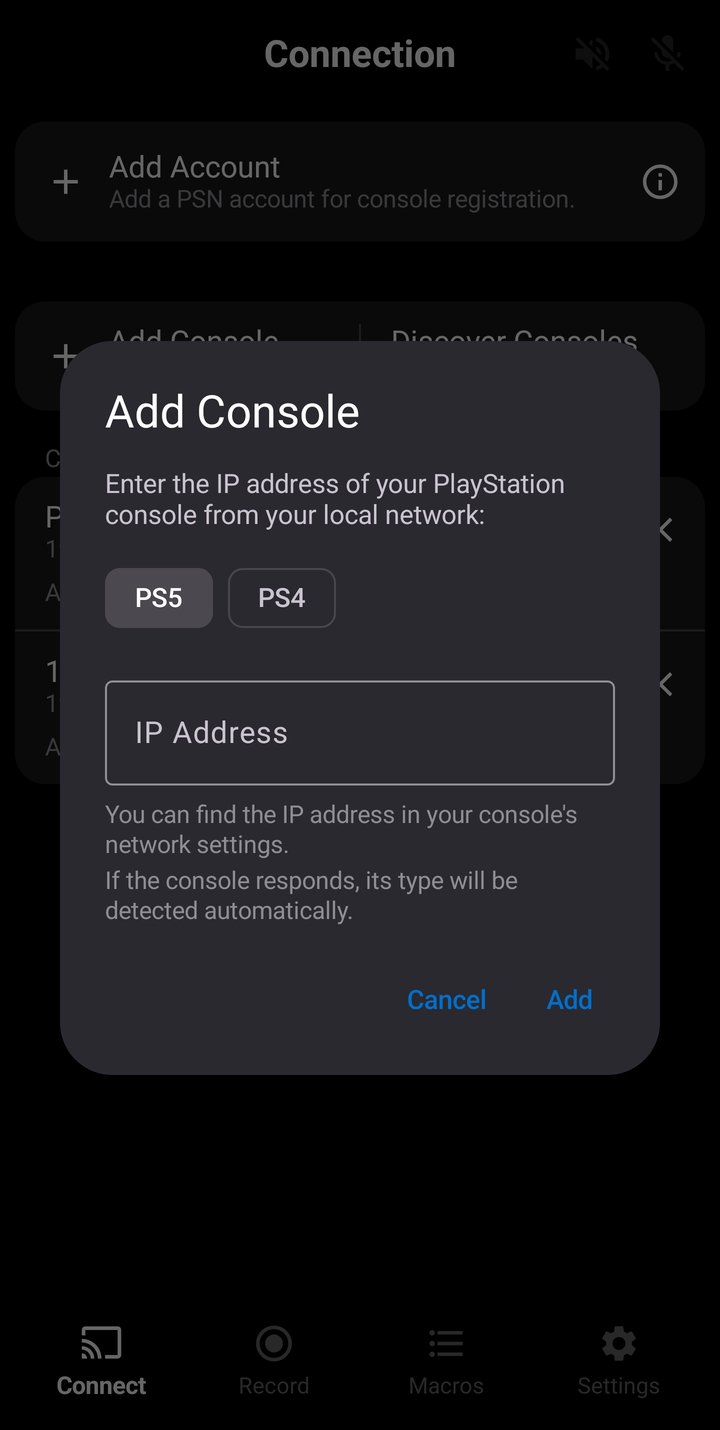
If automatic discovery doesn't find your console (for example, if broadcast traffic is blocked on your network), you can add it manually by IP address. Tap Add Console, select the console type (PS5 or PS4), and enter the console's IP address.
You can find your console's IP address in its network settings:
- PS5: Settings > Network > Connection Status > View Connection Status
- PS4: Settings > Network > View Connection Status
If the console is reachable, its name and type will be detected automatically. If it's not responding (powered off or unreachable), it will still be added to the list so you can pair it later when it's available.
If your console's IP address changes (common with DHCP), you may need to update or re-add the console. Consider assigning a static IP to your console in your router's settings for a more reliable setup.
Pairing
Pairing links the app with your console. This is a one-time process per console — once paired, you don't need to pair again unless you remove the pairing.
Each console is paired with the currently selected account. If you have multiple accounts, make sure the correct one is selected before pairing. The same console can be re-paired with a different account by unpairing it first and then pairing again with the other account selected.
To pair:
- Make sure you have an account added and selected in the PSN Accounts section. This is the account that will be used for pairing.
- On your console, navigate to the Remote Play pairing screen to display the 8-digit PIN:
- PS5: Settings > System > Remote Play > Pair Device
- PS4: Settings > Remote Play Connection Settings > Add Device
- In the app, tap the Pair with selected PSN account button on the console you want to pair.
- Enter the 8-digit PIN and tap Pair.
If pairing succeeds, the console will show "Paired" with the account name. The PIN expires after a few minutes — if it times out, generate a new one on the console and try again.
The PSN account you use for pairing must be the same account that is currently logged in on the console. If a different user is logged in, pairing will fail with error RE-5.
Connecting
Once your console is paired, tap Connect to start a Remote Play session. The connection process takes a few seconds and involves several steps:
- The app contacts your console and authenticates using the pairing keys.
- An encrypted session is established over your local network.
- The app begins sending controller input to the console over UDP.
While connected, all controller input from your phone's connected controller is forwarded to the console with your custom settings applied.
During a connection, account and console management is disabled — you cannot add, remove, or modify accounts or consoles while connected. Disconnect first to make changes.
Make sure a user is logged in on the console before connecting. If the console is sitting at the user selection screen with no user logged in, the connection may time out (CE-3).
Disconnecting
Tap Disconnect to end the Remote Play session. The app sends a clean disconnect message to the console and stops all controller input, audio, and network traffic.
The console may also initiate a disconnect in certain situations:
- The console enters rest mode or is shut down
- Another user starts a Remote Play session to the same console
- A game or app on the console forces the Remote Play session to end
- Network connectivity is lost for more than 5 seconds
When the console initiates a disconnect, the app will automatically return to the disconnected state.
Wake on LAN
If your console is in rest mode, you can wake it from the app by tapping the Wake button. This sends a Wake-on-LAN packet to your console over the local network.
For this to work, your console must have the following settings enabled:
- PS5: Settings > System > Power Saving > Features Available in Rest Mode
- Enable Stay Connected to the Internet
- Enable Enable Turning On PS5 from Network
- PS4: Settings > Power Save Settings > Set Features Available in Rest Mode
- Enable Stay Connected to the Internet
- Enable Enable Turning On PS4 from Network
After sending the wake packet, wait about 15–30 seconds for the console to fully boot before attempting to connect.
Wake on LAN only works over your local network. If your console is powered off completely (not in rest mode), it cannot be woken remotely.
Run in Background
By default, the Remote Play connection is tied to the app being in the foreground. If you switch to another app or turn off the screen, the connection may be terminated by Android's background process management.
Enable Run in Background (in Settings) to keep the connection alive when the app is in the background or the screen is off. This starts a foreground service with a persistent notification showing that the Remote Play session is active.
While running in the background, the connection, audio, microphone, and any active macro playback remains active. However, live controller inputs, trigger detection, and recording will not function — Android stops delivering controller events to minimized apps. Return to the app to use your controller or start new triggers.
Run in Background must be enabled before connecting to the console. Toggling it while connected has no effect. If you need to change this setting, disconnect first, enable it, then reconnect.
Connection Errors
These errors may appear when attempting to connect to your console. Each error code is prefixed with CE- (Connection Error).
| Code | Message | What to Do |
|---|---|---|
| CE-1 | Could not reach the console | The console is not responding at the expected IP address. Make sure the console is powered on and on the same network. Check if the console's IP address has changed. |
| CE-2 | Connection timed out | The console was found but didn't respond in time. Make sure the console is powered on (not in rest mode) and not busy with another operation. Try again. |
| CE-3 | Connection timed out — no user logged in | The console responded but no user session was established. Make sure a user is logged in on the console (not sitting at the user selection screen). |
| CE-4 | Connection setup incomplete | An internal setup step failed. Try connecting again. If it persists, restart the app. |
| CE-5 | Connection setup incomplete | Same as CE-4. Try connecting again or restart the app. |
| CE-6 | Failed to establish connection | Network negotiation on the first UDP channel failed. Check your network connection and try again. A firewall or router may be blocking UDP traffic. |
| CE-7 | Failed to establish connection | Network quality test failed during connection setup. This may indicate an unstable network. Try again or check for network interference. |
| CE-8 | Failed to establish connection | Network negotiation on the second UDP channel failed. Check your network connection and try again. |
| CE-9 | Failed to establish connection | Final session negotiation failed. Try again. If it persists, restart both the app and the console. |
| CE-10 | Console is busy | The console rejected the connection because it's still processing a previous session. Wait about 30 seconds and try again. This commonly happens if you reconnect immediately after a disconnect. |
| CE-11 | Console rejected the connection | The console refused the connection request. Wait 30 seconds and try again. Make sure no other Remote Play session is active on the console. |
| CE-12 | Unexpected console response | The console responded with an unexpected format during the handshake. Try again. If it persists, restart the console. |
| CE-13 | Unexpected console response | Similar to CE-12. An unexpected response was received during setup. Try again or restart the console. |
| CE-14 | Console rejected the connection | The console rejected the encrypted control channel setup. Wait 30 seconds and try again. If the error persists, try re-pairing the console. |
| CE-15 | Connection timed out | The connection attempt timed out at the network level. Make sure the console is powered on and on the same local network. |
| CE-16 | Could not reach the console | The console is not reachable. Verify the console's IP address and that both devices are on the same network. |
| CE-17 | Connection failed | A general connection failure occurred. Try again. If it persists, restart both the app and the console. Contact support if the issue continues. |
| CE-18 | Remote Play on the console has crashed | The console's Remote Play process has crashed and is in a bad state. You must fully restart the console (not just rest mode) to recover. After restarting, try connecting again. |
| CE-19 | Protocol version mismatch | The app's Remote Play protocol version doesn't match the console's firmware. This may happen after a major console firmware update. Contact support for further information. |
| CE-20 | Video stream failed to start | The console's video stream didn't start during connection setup (the initial video keyframe was lost). Console video is used for configuring image triggers. Tap Connect to try again — reconnecting starts a fresh video stream and usually resolves it. More likely on slower networks or older devices. |
Pairing Errors
These errors may appear when attempting to pair the app with your console. Each error code is prefixed with RE- (Pairing Error).
| Code | Message | What to Do |
|---|---|---|
| RE-1 | Could not find the console | The console did not respond to the pairing request. Make sure the console is powered on, on the same local network, and that the pairing screen is open on the console (Settings > System > Remote Play > Pair Device). |
| RE-2 | Unexpected console response | The console responded but the response was malformed. Try again. If it persists, restart the console and generate a new PIN. |
| RE-3 | Pairing rejected by console | The console rejected the pairing. The most common cause is an incorrect or expired PIN. Generate a new PIN on the console and try again. The PIN expires after a few minutes. |
| RE-4 | Unexpected console response | The pairing completed but the response was missing required data. Try again. If it persists, restart the console. |
| RE-5 | Invalid PSN account | The PSN account selected in the app does not match the user currently logged in on the console. Make sure the same PSN account is logged in on the console and selected in the app. |
Troubleshooting
Console not found during discovery
- Make sure the console is powered on (not in rest mode).
- Verify both devices are on the same Wi-Fi network.
- Some routers block broadcast traffic between devices. Try adding the console manually by IP address instead.
- If using a mesh Wi-Fi system or access point, make sure "client isolation" or "AP isolation" is disabled.
Connection drops frequently
- A wired (ethernet) connection for your console provides the most stable experience.
- Connect your phone to the 5 GHz Wi-Fi band if available. The 2.4 GHz band is more prone to interference.
- Move closer to your Wi-Fi router to improve signal strength.
- If using Run in Background, some aggressive battery optimization settings on certain phone manufacturers (Xiaomi, OnePlus, Huawei) may kill the background service. Check your phone's battery optimization settings and exclude ConsoleMacros PX.
"Console is busy" (CE-10) after disconnecting
After a Remote Play session ends, the console takes up to 30 seconds to clean up the previous session. Wait 30 seconds before trying to reconnect. This is normal console behavior and not an app issue.
CE-18 after a long session
If you encounter CE-18 ("Remote Play on the console has crashed"), the console's Remote Play process has entered a bad state. This requires a full console restart — rest mode is not enough. After restarting, connections should work normally again.
Connection works but no controller input
- Make sure a controller is connected to your phone via USB or Bluetooth.
- Check the Controller Test screen (in Settings) to verify the app is receiving input from your controller.
- If using Bluetooth, try disconnecting and reconnecting the controller.
- Controller inputs only work when the app is open and in the foreground. If the app is minimized (even with Run in Background enabled), live controller inputs and trigger detection will not function — Android stops delivering controller events to minimized apps. Active macro playback will continue, but you must return to the app to use your controller.
Pairing succeeds but connection fails
- Make sure the same PSN account is still logged in on the console.
- Try unpairing the console (tap the X next to the console and choose "Unpair Only") and re-pairing with a fresh PIN.
- Restart both the app and the console, then try connecting again.